AI design tool for complete campaign visuals
Create complete campaign visuals with an AI design tool.
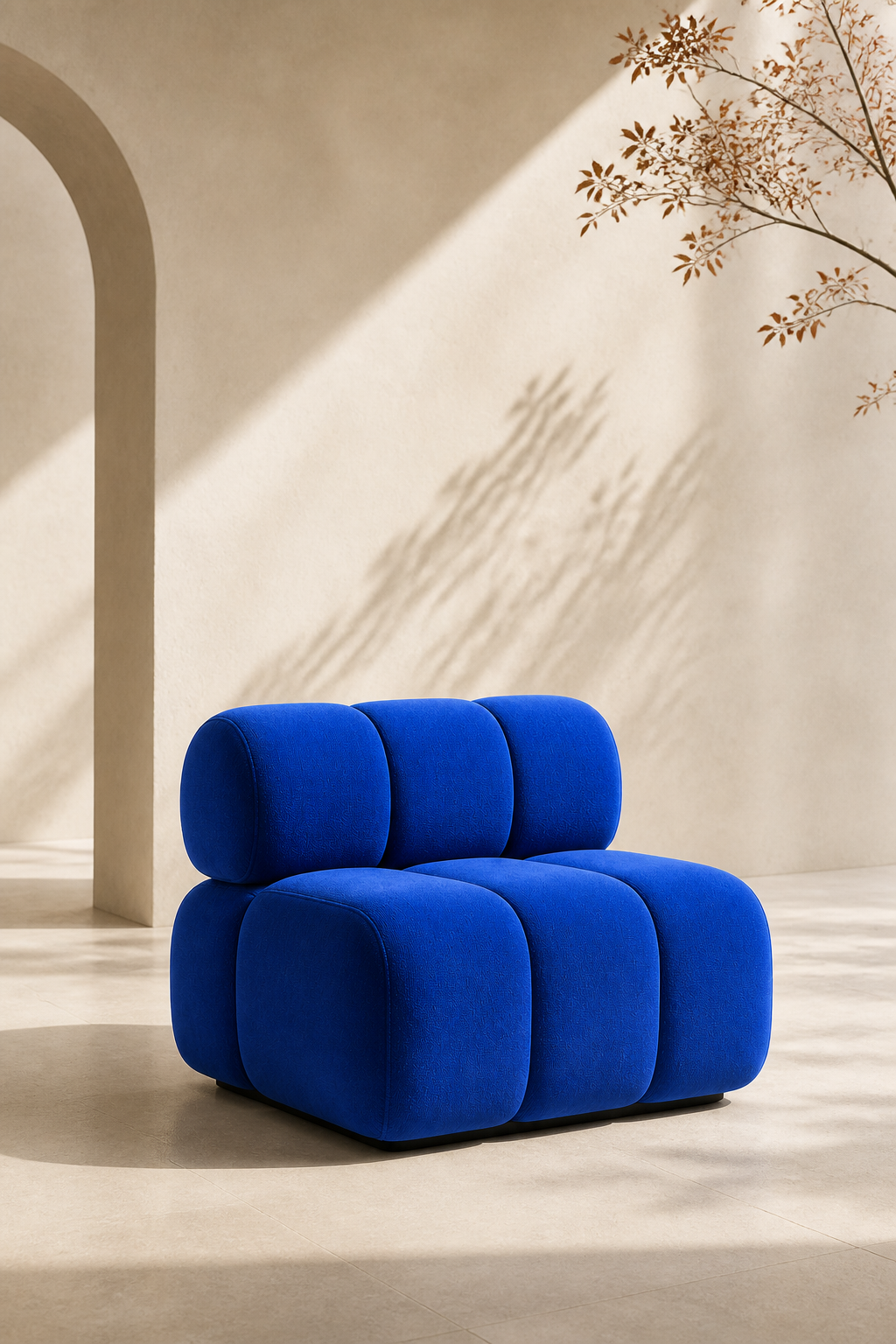
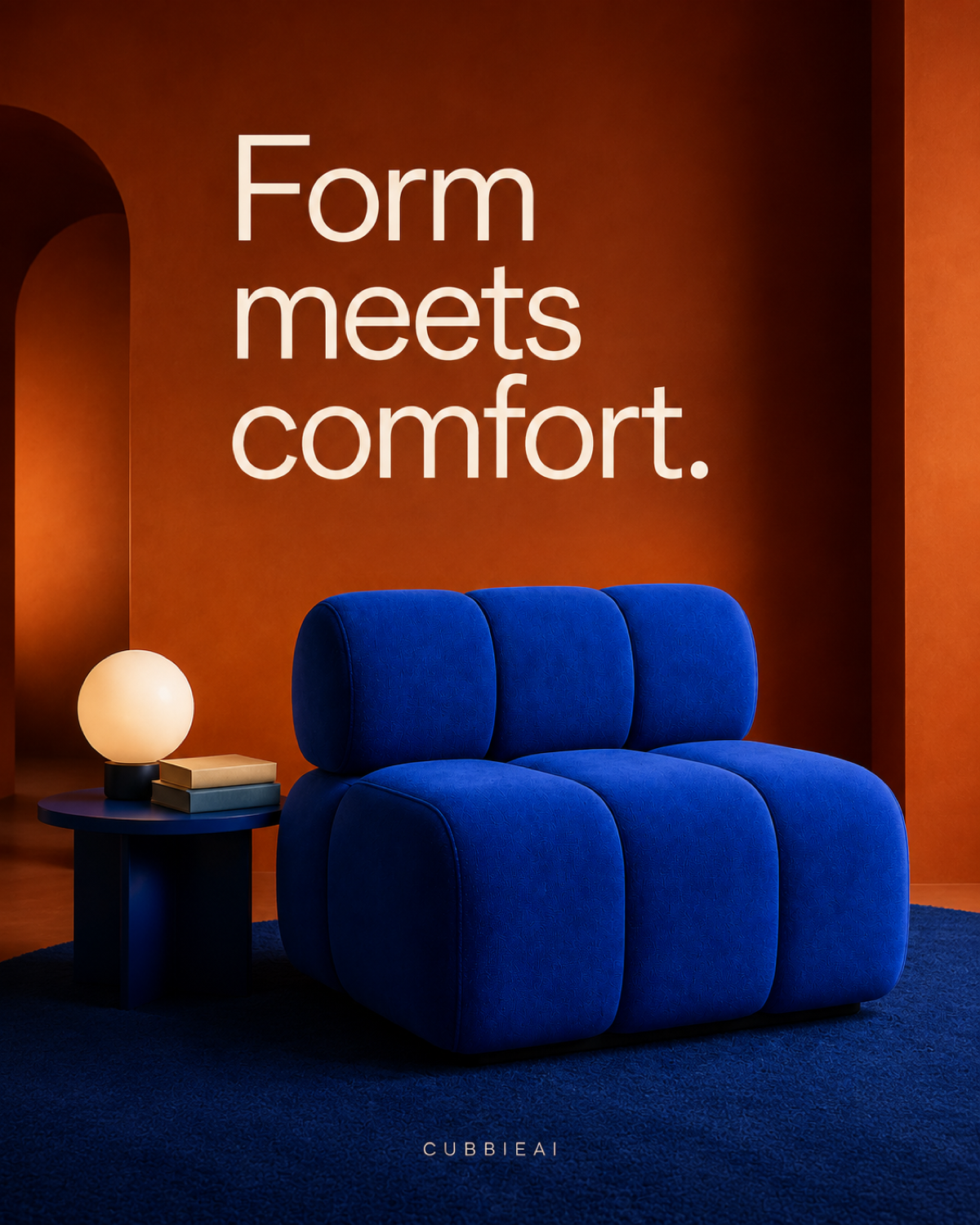
Start with a prompt, one image, or a collection of references. Use one connected AI design platform to explore directions, refine graphic layouts, and export finished assets without losing context.
 20 free daily credits
 No card required
 Failed runs restored
 High-res PNG export
Connected AI design platform
Keep the entire graphic design process on one canvas.
References, prompts, generated directions, layouts, and versions stay connected from the first idea to the final campaign asset.
References PromptsLayoutsVersions
AI design generator with context
Generate from a prompt, an image, or a full reference board.
Use as much or as little source material as you have. The AI design generator keeps every reference visible while you explore distinct art directions and develop the strongest one.
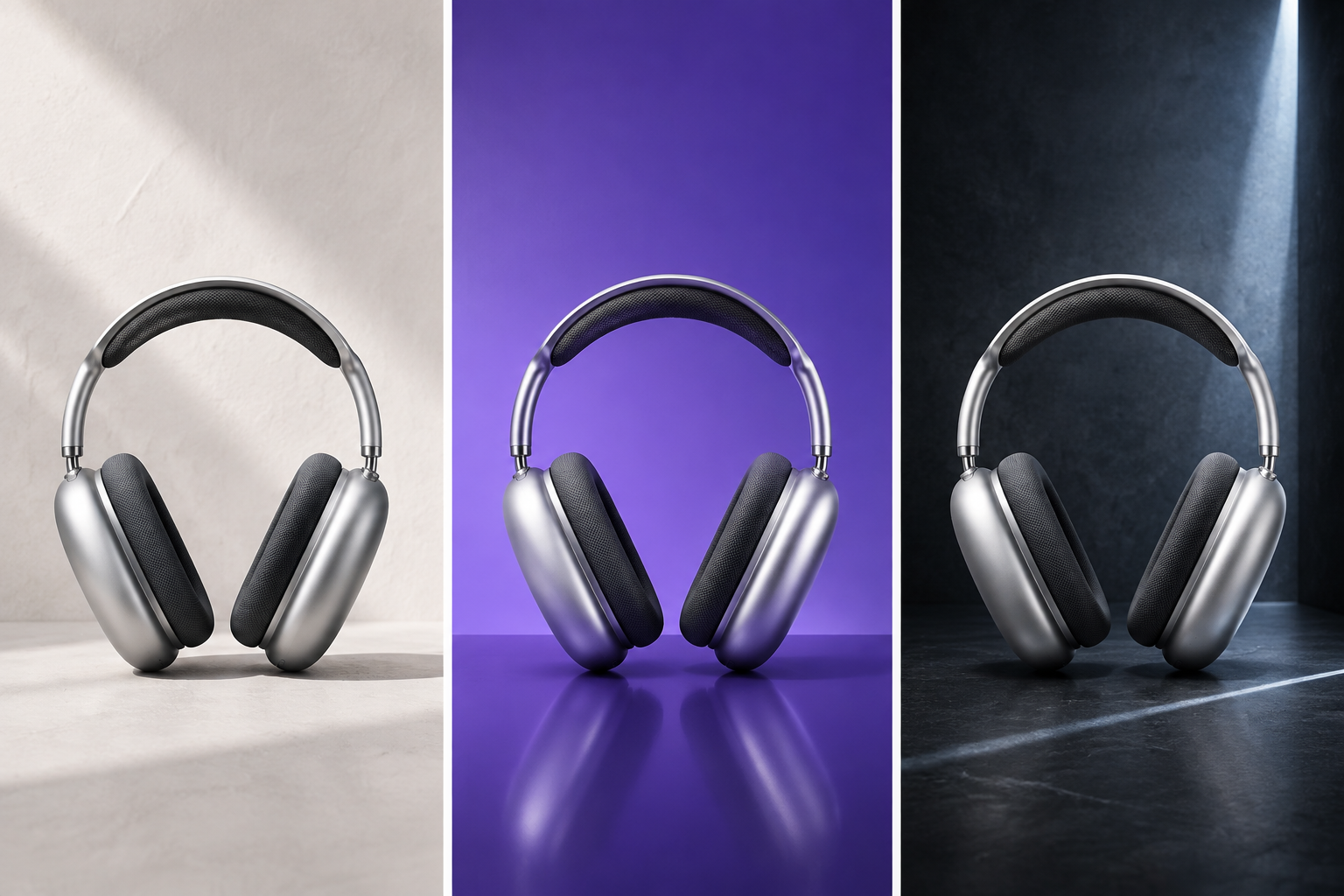
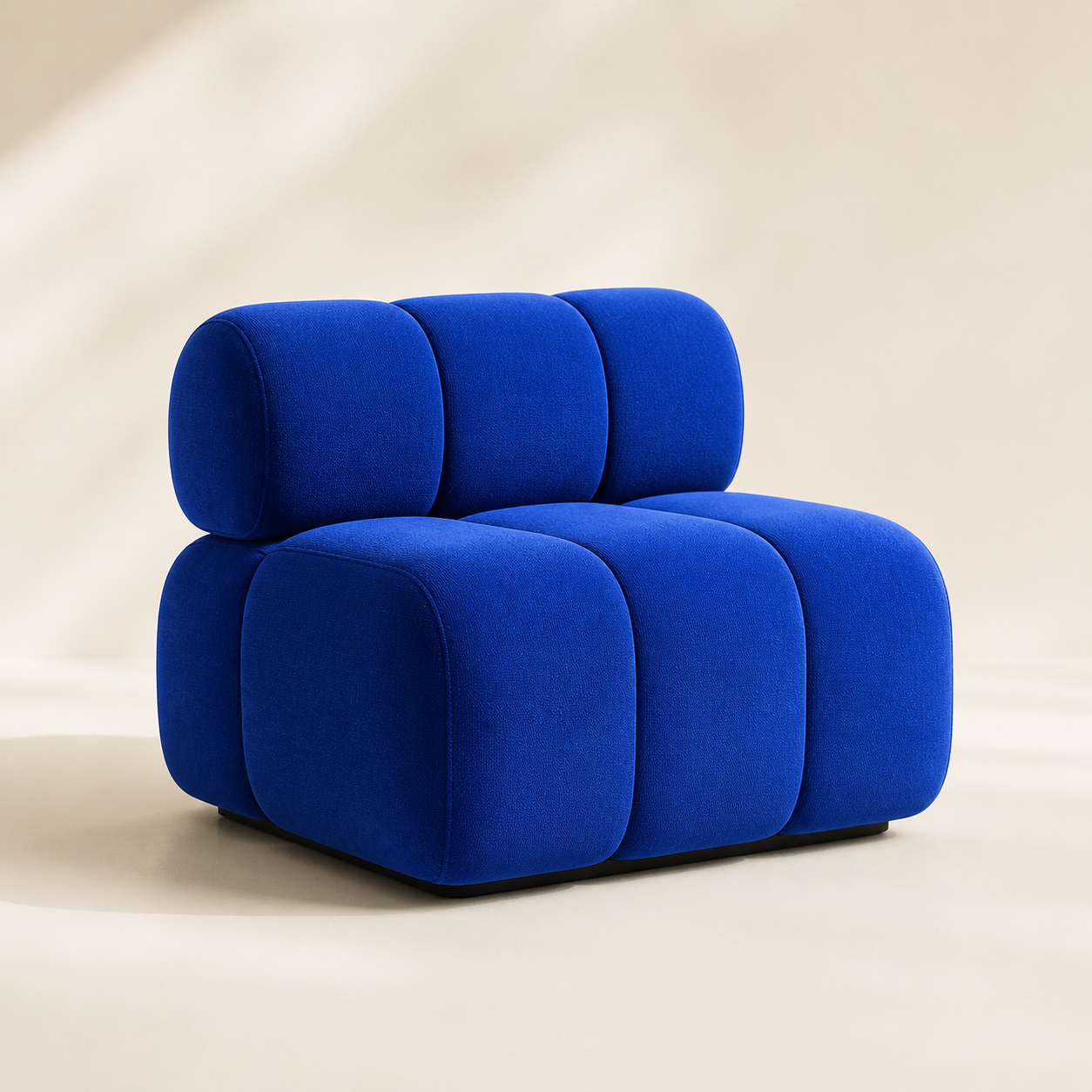
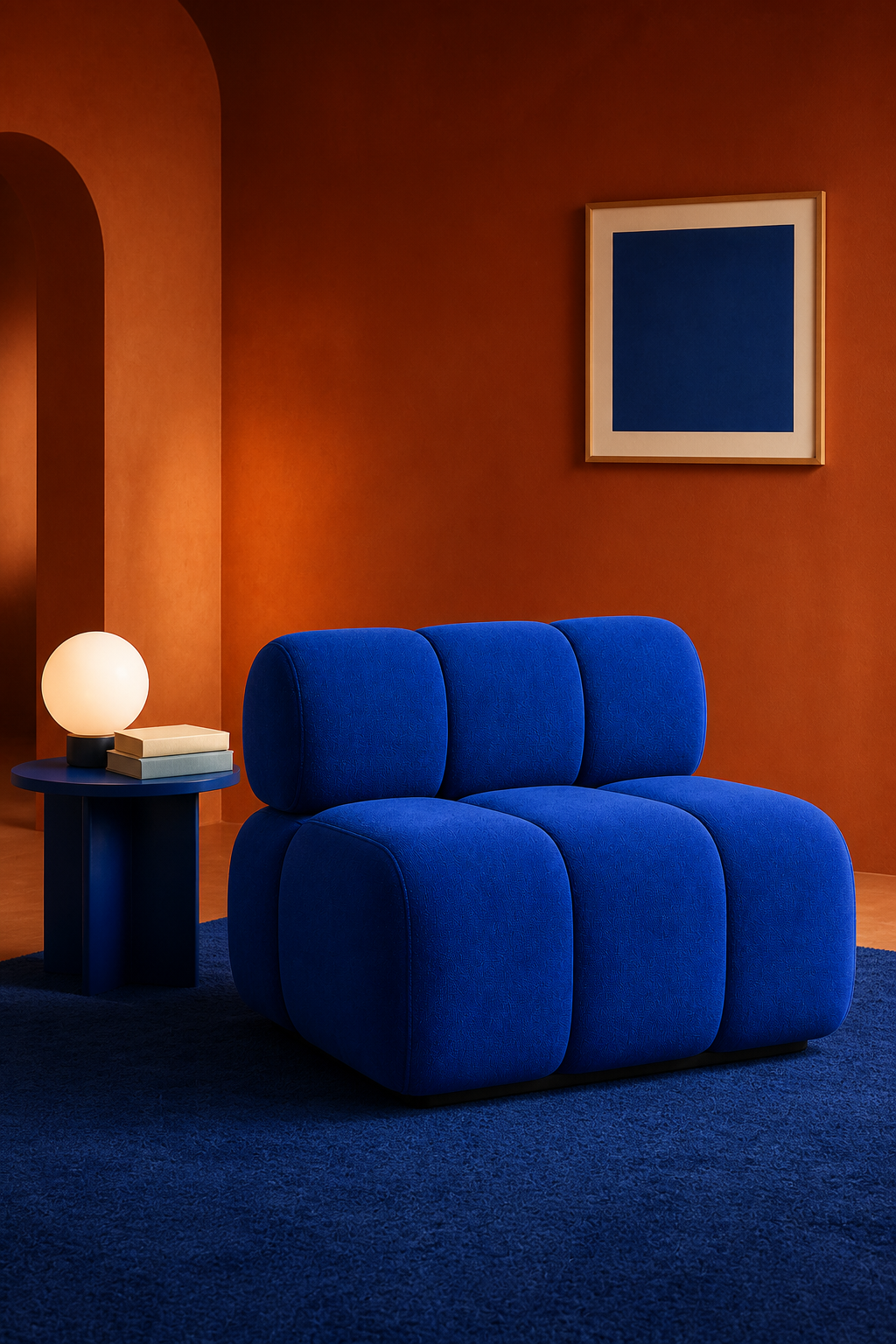
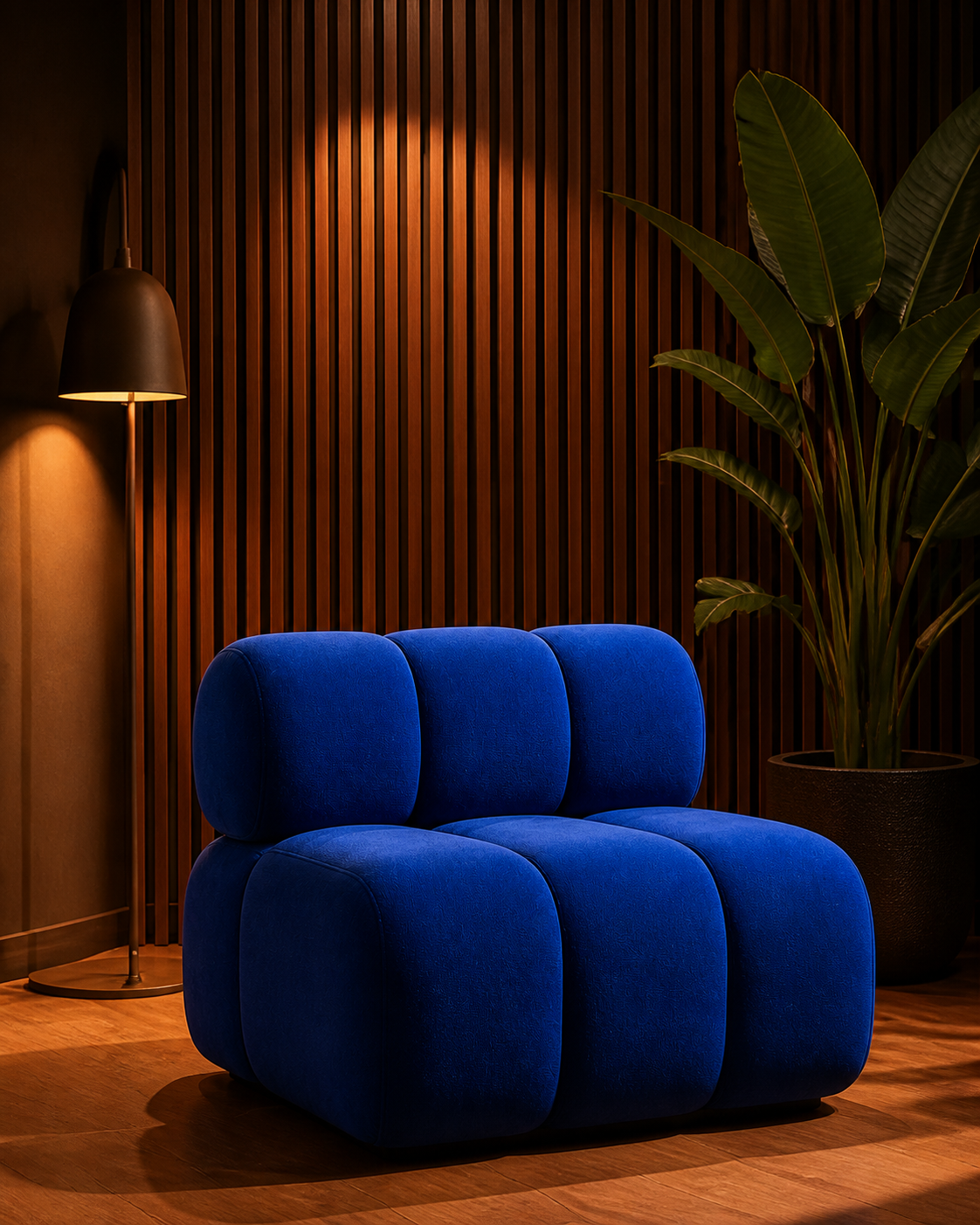
One product, three distinct visual directions.
Design concept exploration
Compare visual directions side by side.
See every direction together, select the strongest route, and keep product details consistent while the idea evolves.
Select a direction to compare · Explore real Studio examples →
AI design agent workflow
How the AI design tool fits your workflow.
Keep source images, generated results, canvas edits, and project versions together while the AI design agent works from the context on your canvas.
- 01
Add a prompt or reference images
Begin with a written request, or select one or more images already on the canvas as references. The selected images stay in the project while the agent uses them as context for the request.
- 02
Return results to the canvas
Generated images are added to the same visual workspace. Move, resize, and arrange the results beside their references so the source and each new direction remain visible as design context.
- 03
Edit directly on the canvas
Add text, rectangles, ellipses, arrows, lines, drawings, and frames around the imagery. Crop a selected image to an aspect ratio, adjust opacity and layer order, or undo a canvas change.
- 04
Restore or export the work
Open version history to review and restore an earlier saved state. When the composition is ready, export the visible canvas elements and canvas background together as a PNG file.
AI graphic design, made editable
Turn images into editable visual layouts.
Adjust typography, crops, composition, and visual details directly on the canvas instead of starting over with every prompt.
- Text
- Image
- Background
AI design beyond a single prompt
Design is a space—not a prompt.
Keep context, decisions, and versions visible in one place, so every creative direction can move forward with clarity.
Complete design system
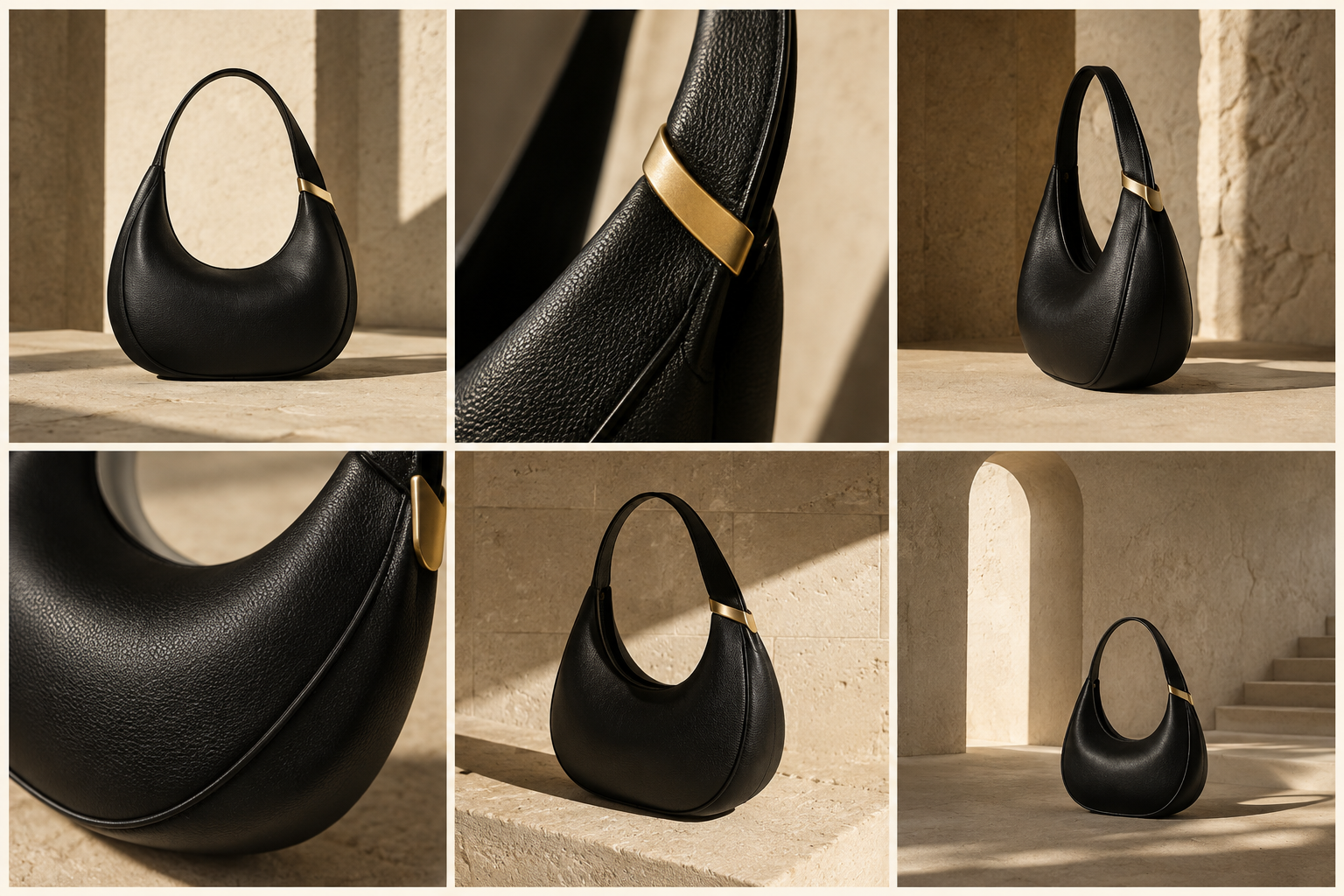
Build a complete visual system, not a single image.
Create the assets you need from prompts or reference images and maintain visual consistency across every format.
Creative work across categories
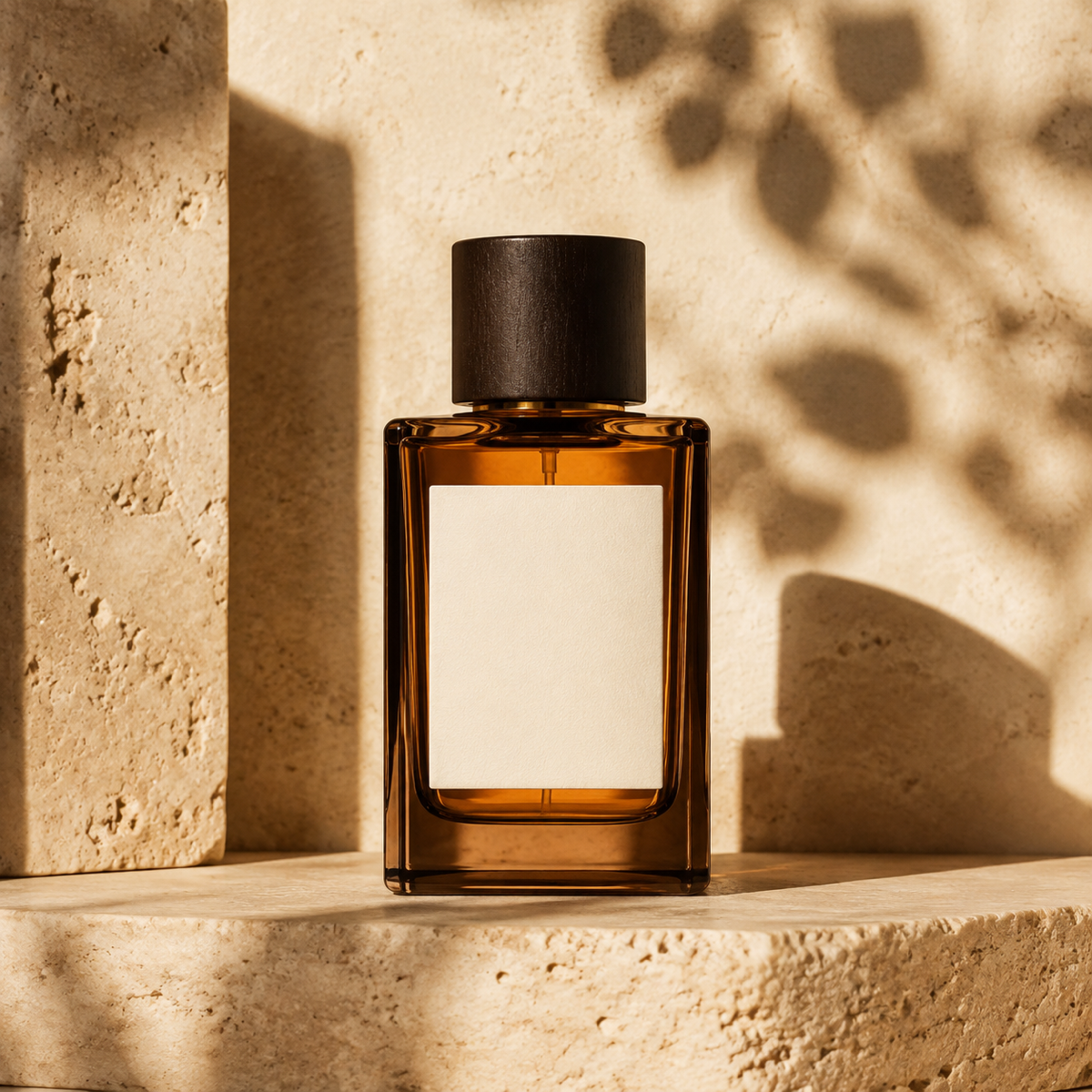
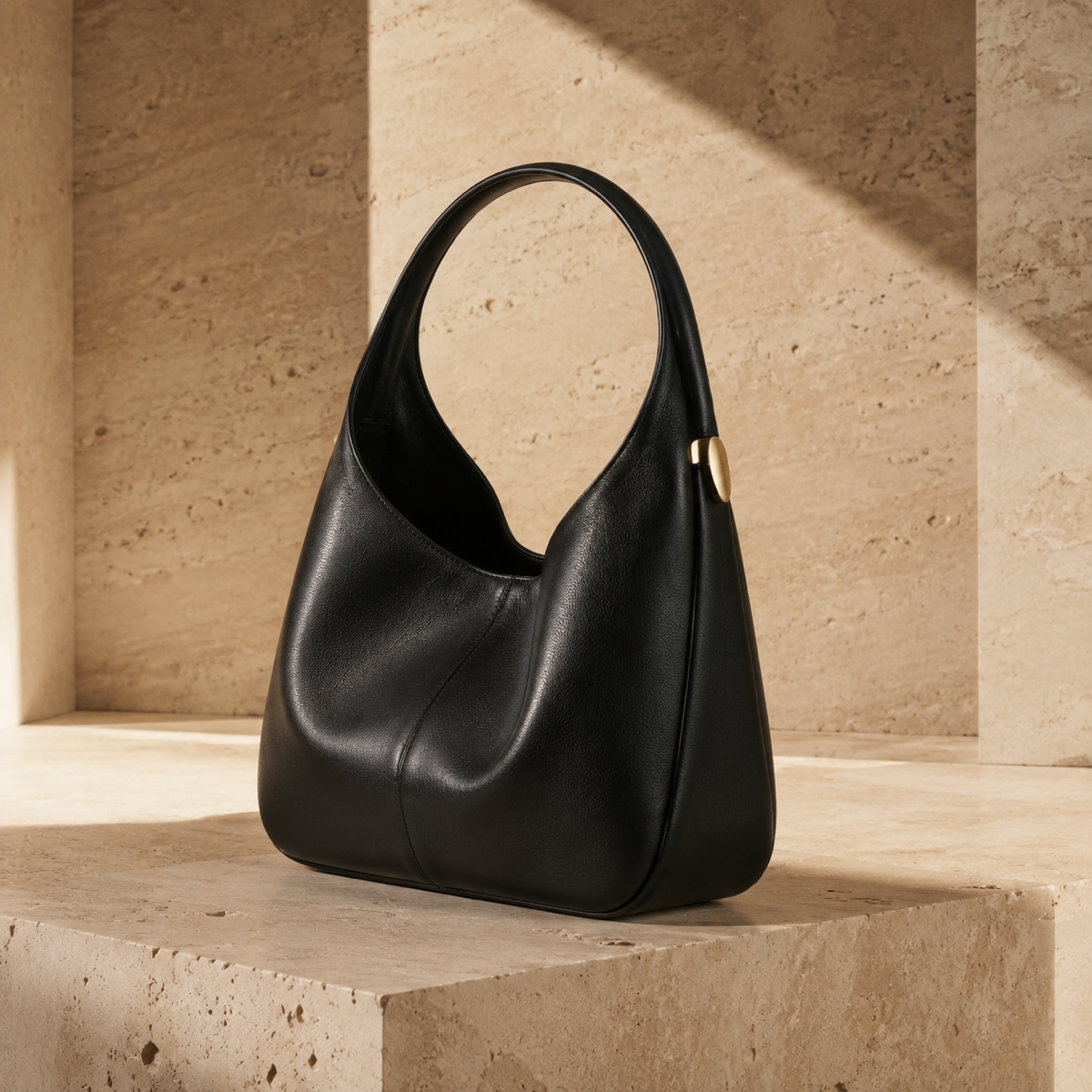
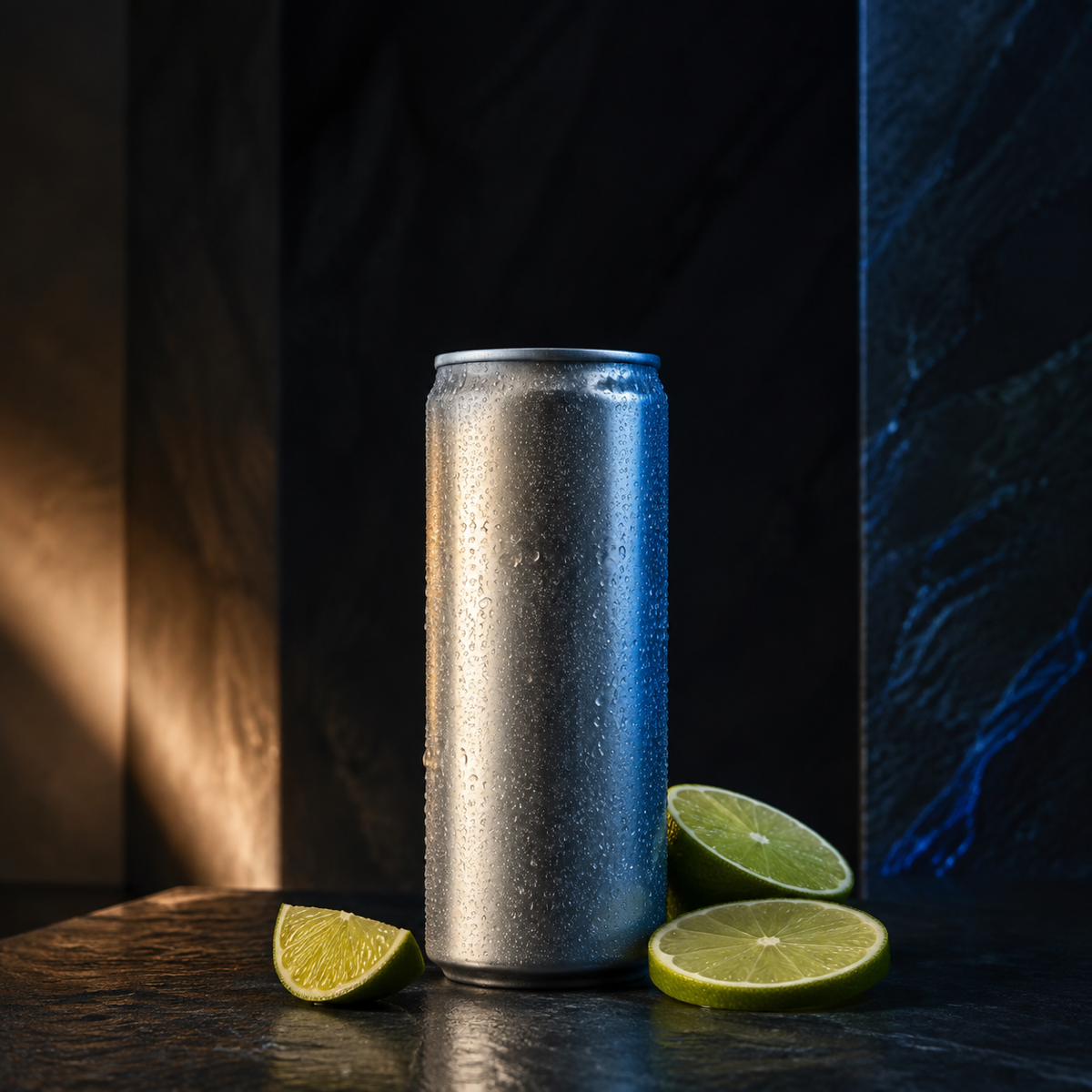
AI design for every product category.
Develop consistent product visuals for furniture, beauty, fashion, and beverage brands in the same connected workflow.
Design-ready export
Export high-resolution assets ready for launch.
Download every finished visual as a high-resolution PNG in the format your channel needs.
Questions, answered
Questions about CubbieAI.
What is an AI design tool?
CubbieAI is an AI design platform that combines generation, editing, comparison, and layout tools on one connected canvas. It keeps references, prompts, outputs, and versions together as you build a complete visual campaign.
Can I use CubbieAI as a free AI design tool?
Yes. Sign in to receive 20 free credits every UTC day. Canvas editing does not use generation credits, and no card or subscription is required to start.
Can I use my own images as references?
Yes. Add your product photos or visual references to the canvas and keep them visible while you explore new creative directions.
How is CubbieAI different from an AI image generator?
A typical AI image generator focuses on a single output. CubbieAI combines an AI design generator with an editable canvas, so the AI design agent can work from visible references while you organize layouts, layers, and versions in the same project.
Can I edit generated designs?
Yes. Refine images, add text and shapes, compare directions, return to earlier versions, and arrange final layouts without leaving the canvas.
What export formats are available?
Export high-resolution PNG assets for square, portrait, and landscape placements. Failed generations automatically restore their reserved credits.
Can the AI design tool use multiple reference images?
Yes. Select multiple images on the canvas before sending your request. CubbieAI includes the selected images as references while keeping them visible in the project beside the generated results.
Can I crop an image without generating a new one?
Yes. Select one image and request an aspect ratio such as 4:5. The crop is applied directly on the canvas, can be undone, and does not use image generation.
Can the AI design tool remove an image background?
Yes. Select a PNG, JPEG, or static WebP image and choose Remove background from the image tools. The processed image replaces it on the canvas, and Undo restores the original.
Can I restore an earlier design version?
Yes. Open version history to review saved project states and restore an earlier version. CubbieAI creates a safety backup of the current state before completing the restore.
Start with a free AI design tool
Bring your next campaign together on one canvas.
Start with today’s free credits. No card or subscription required.
Start designing free